
Add any festival to FestMates in a few clicks
Published · 6 min read
FestMates already covers a lot of festivals, but not every small open air or club weekend. If yours is missing, you don't have to wait for us. Any goer can add a festival in the app in a few minutes, and organizers can set up their own festival for free on this website.
The short version for goers:
- Tap Add a festival on the Festivals tab.
- Pick From any other source and tap Get the prompt.
- Give the prompt to any AI assistant together with the festival's schedule.
- Paste the assistant's answer back and tap Check and preview.
- Check the preview, set the festival pin on the map and tap Add festival.
Step 1: open the import
On the Festivals tab, tap Add a festival. The app offers two ways in. One fetches a timetable that already exists on a community timetable site, straight from its link. The other, From any other source, works for every festival with a website, a poster or a line-up post. That second way is the one this guide follows.
Step 2: get the prompt and find the schedule
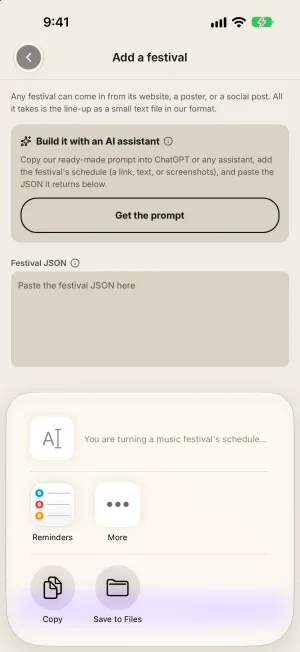
Tap Get the prompt. The app hands you a ready-made instruction that tells an AI assistant exactly which format FestMates reads: the festival name, its time zone, the stages, and each act with its set time.
Now find the schedule. The festival's official website or its social media posts are the best places to look. A line-up announcement or a timetable PDF both work.
- A link to the festival's website usually works best, if your assistant can open links: it reads the real text instead of guessing from an image. If it can't, paste the schedule text or attach a clear screenshot.
- No website? Clear screenshots of the timetable or the poster work too.
- No set times yet? Ask the assistant to list just the announced acts. FestMates shows them as a line-up and you can update the festival once the times are out.
Step 3: paste the answer and check it
Paste the prompt into your AI assistant, add the schedule, and copy the whole reply. Back in FestMates, paste it into the Festival JSON box and tap Check and preview.
The app checks every act. If something is wrong, it lists what to fix under Please fix these first. Tap Share for AI help to send that list and the file back to your assistant, then paste the corrected answer.
Next comes the preview. With set times, that's the timeline, exactly how the schedule will look in the app. A line-up without times shows as a list. Compare it with the source. Look for acts on the wrong stage, missing sets or times that don't line up. The app can tell that the file is valid, but only you can tell that the schedule is right. Tap Mark as checked when it matches, then Continue.
Step 4: place the festival on the map
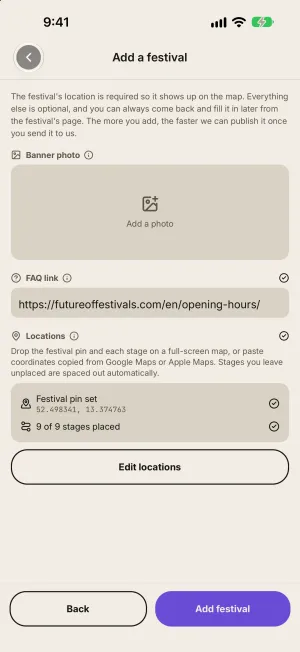
One thing is required before you can save: the festival pin. Tap Set locations (Edit locations if the file already has coordinates), move the map so the pin sits on the festival grounds, or paste coordinates copied from a maps app. You can place each stage the same way. Stages you skip get an estimated pin near the festival pin, so don't rely on those to find the stage on site.
Two extras are optional: a banner photo (the official line-up poster is perfect) and a link to the festival's FAQ page. Tap Add festival and you're done.
What you can do with it
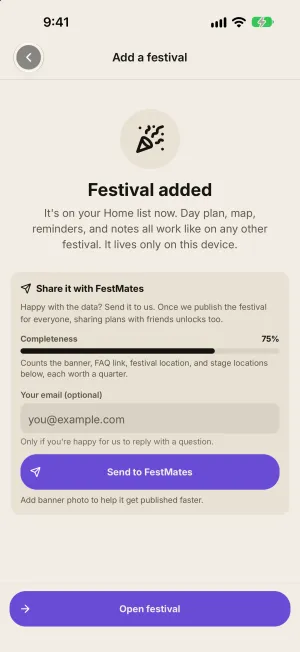
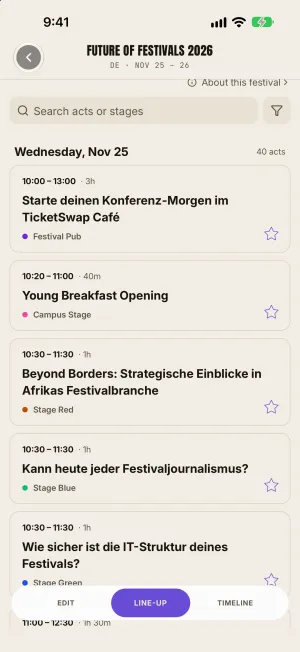
Your festival now sits in your list like any other. The day plan, clash warnings, reminders, notes, checklist, pins and the map all work, offline too. It lives only on your phone.
When the line-up changes, open the festival's Edit tab, tap Update JSON and paste the new answer. The app shows what is different (acts added, removed or moved) before anything is saved. Acts that keep their name and stage also keep your stars, reminders and notes.
Share it with FestMates
Happy with the data? Tap Send to FestMates. To send it in, the festival needs set times on stages, its location and a FAQ link. We review every submission before it goes live. Your own plan, reminders, notes and pins are not part of it.
Two features wait for that step, because they need the festival on our side: sharing your plan and pins with friends, and Find my crew. Once the festival is published, both work as usual.
For organizers: set up your festival for free
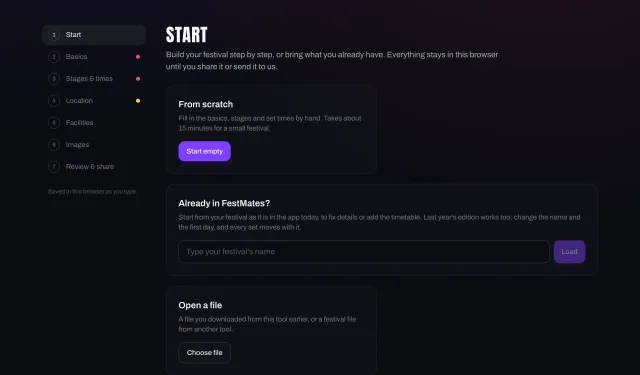
Run a festival? The organizer tool on this website does the same job with more room to work. It is free, and you don't need an account.
- Start empty, open a saved file, or copy the same AI prompt and paste the answer.
- Basics: name, dates, time zone, country, a short description and your FAQ link.
- Location: click the map to set the festival pin.
- Stages and times: add stages and acts by day. Keep your timetable in a spreadsheet? Upload the file or paste the rows, then pick which column is which.
- Facilities: toilets, water, food, bars, first aid, lockers, charging and more, each placed on the map.
- Images: a banner and your site map.
- Review: a checklist shows what still needs attention before you share.
Then you have three choices. Download the file to keep working later. Open it in the app with a QR code or a link, to see your festival on your own phone and share it with your team (the link works for 30 days and anyone who has it can see the festival). Or send it to us to publish. Nothing goes public until we have checked it.
Your work stays in your browser until you share or send it. Prefer to send your line-up as a sheet, a PDF or a link? That works too, through the contact form.
Questions
Which AI assistant should I use?
Any assistant that can read a link, text or screenshots works. The prompt from the app tells it the exact format, so you don't need to explain anything yourself.
Can other people see a festival I added?
No. A festival you add stays on your phone until you tap Send to FestMates and we publish it.
What if the set times aren't out yet?
Add the announced acts as a line-up now. When the timetable is published, paste the new version. Acts that keep the same name and stage also keep their stars.
Does it cost anything for organizers?
No. Setting up a festival with the organizer tool and having it published in FestMates is free today.
New to the app? How to use FestMates walks through the day plan, the map and finding your crew.
Get FestMates
Free for iPhone and Android. No account needed.


Keep reading
How to use FestMates: plan, map and crew
A walk through FestMates: find your festival, star acts for your day plan, spot clashes, find facilities, use it offline and meet up with your crew.
FestMates and other festival apps compared
Branded festival apps, multi-festival apps, spreadsheets and paper timetables: what each option offers goers and organizers, and where FestMates fits.